
The latest updates, directly from our Wiki.
Opening the latest Patch Notes…

Learn about this AoY NPC, their services, and where to find them.

Shows players how to contact the staff team and where to seek account or gameplay support.
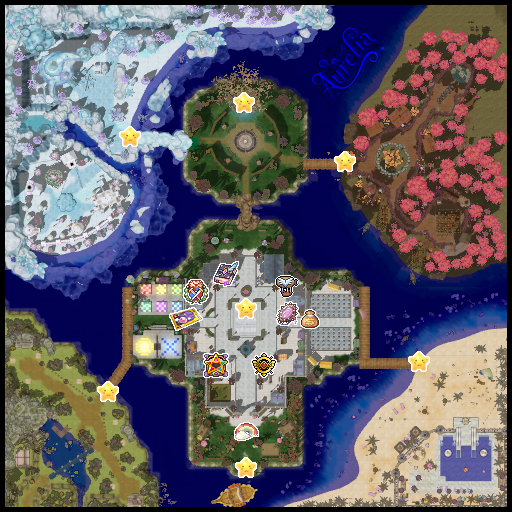
The marker shows Age of Ymir Staff's exact position.
Shows players how to contact the staff team and where to seek account or gameplay support.
Each route below leads to the relevant steps. Keep the exact error text handy if you need to open a ticket.

 Start Here
Use the launcher for normal updates. To recover an older AoY client, select its existing folder in the latest installer.
Find the right steps Client Files
Security software can remove required client modules such as aoy.dll and leave the client unable to start.
 Lag & Display
Check mouse polling, connection settings, high-resolution scaling, and custom display sizes.
Jump to lag fixes AoYExt Hotkeys
Open AoYExt Settings from the launcher, assign the same physical key used in-game, apply the change, and restart the client.
Troubleshoot Turbo & Smart Cast Map Appearance
Close the game and open OPTIONS, then Game Settings, to choose Gray World or standard map textures.
Set up Gray World safely Character Appearance
Use OPTIONS → Game Settings → Chibi Mode for smaller character sprites. The current launcher manages the resource files for you.
Set up Chibi Mode safely Custom Homunculus AI
Back up the existing AI folder, install the resource in the game directory, and use /hoai until the customized confirmation appears.
 Still Stuck?
Include screenshots, the exact error text, your install folder, Windows version, and what you already tried so support can narrow it down quickly.
Open a support ticketUsing the current full client? Normal updates do not require reinstalling. Close every game window, open AoY Launcher.exe from your existing AoY folder, and let patching finish before pressing PLAY. The launcher update preserves your settings and patch progress.
Get the latest AoY Installer (website sign-in required), or use the Alternative Download. For a new installation, choose an empty folder, such as C:\Games\Age of Ymir. For an older AoY client, close the game and launcher, then select your existing AoY folder in the latest installer. It verifies existing files and downloads only missing or changed files, including required AoYExt and cosmetics.grf updates. Validated player preferences are preserved, and interrupted work can resume. When installation finishes, run AoY Launcher.exe and complete patching.
Check the supported Windows versions and prerequisites. Follow any Microsoft prerequisite prompts and complete a required restart before continuing.
This ZIP is for the full client released on October 20 or later. If you use an older full client or are unsure, use the latest installer and select your existing AoY folder instead.
Age of Ymir.exe. Replace the launcher files when prompted.For a supported full client, use this ZIP if REPAIR is unavailable in your older launcher, or the launcher is missing, will not open or cannot verify its own files. Launcher Repair restores the launcher files; it does not replace missing full-client game data. Use the latest installer to verify an older AoY folder, or follow the installation guide for a new installation.
Reports are saved independently in %LOCALAPPDATA%\Age of Ymir Installer\Logs, with %TEMP%\Age of Ymir Installer\Logs as a fallback. You do not need an installed client or game logs to obtain an installer report.
The installer retries brief locks on its progress files. An access-denied message can have several causes; the report helps identify the failed operation before changing folders or security settings.
The current launcher fixes a language-dependent issue that could leave PLAY gray after a successful patch. It recognizes the updater's supported completion messages and still checks the required client files before launch. Existing players do not need to reinstall.
Age of Ymir.exe is present.REPAIR uses the same official package as the manual ZIP. It preserves game files, settings and patch progress. It does not rescan every game file. Use the separate Retry action to retry a connection; persistent permission or connection problems may still need support. PLAY becomes available only after patching and the required file checks succeed.
Let AoY Launcher.exe finish patching before changing settings. The highlighted controls below open AoYExt Settings or switch the two optional visual modes on and off.
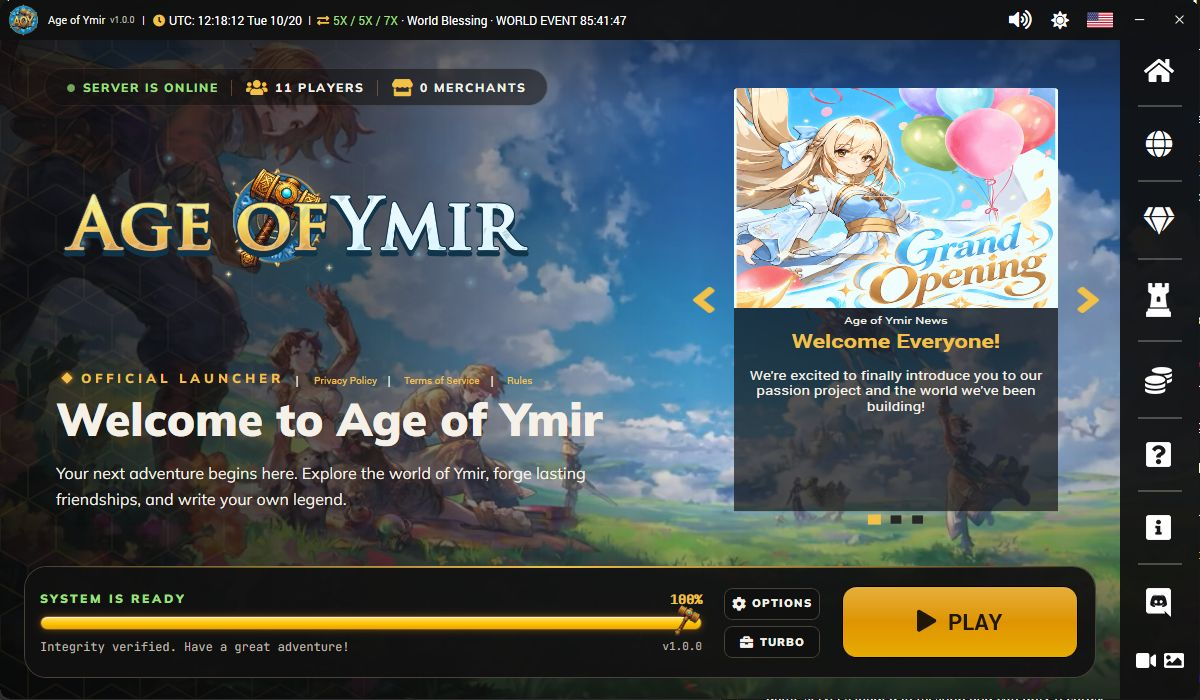
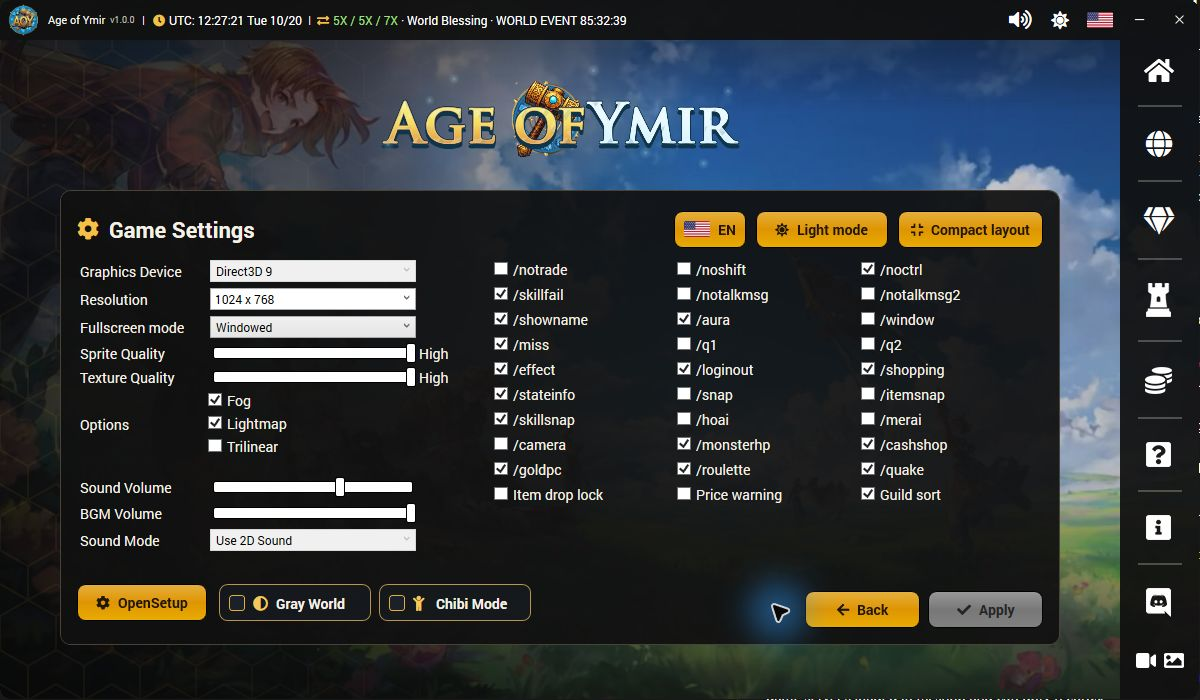
Gray World and Chibi Mode are independent and can both stay ON. The launcher manages their files and load order, so do not manually edit DATA.INI or rename GRFs while using these controls. Start the game again to see your changes.
Use only the current official client package and keep your antivirus enabled. If security software blocks a verified client file, the recovery steps below explain how to limit an exception to your dedicated AoY folder. The client needs aoy.dll, cps.dll, and gepard.dll as well as Age of Ymir.exe.
C:\Games\Age of Ymiraoy.dllThe Age of Ymir client and some anti-cheat components currently do not carry a trusted code-signing certificate. Newly repacked files also have limited reputation data, so reputation-based or heuristic protection may classify an official client component as suspicious even when it is the expected file.
If aoy.dll or another required module is quarantined or deleted, Gepard may appear briefly before the client closes, or Windows may show an exception such as 0xc0000005, Error loading grf dll, or another client startup error.
The current client uses aoy.dll. The old dqe.dll is retired: do not restore it from quarantine, copy it back, or rename it to aoy.dll. Recover the current files from the official client package instead.
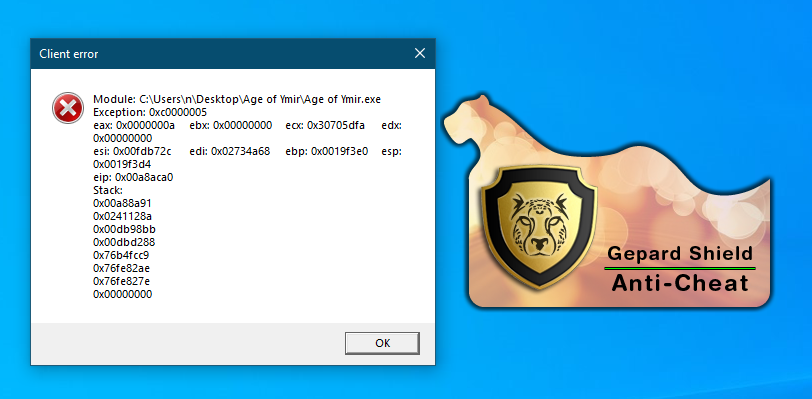
Important: Follow these steps only for a client downloaded from the official Age of Ymir Downloads page. Never allow or restore a similarly named file obtained from a DLL mirror, another player, or an unofficial archive.
Program Files, OneDrive, Desktop, and Documents. We recommend C:\Games\Age of Ymir.C:\Games\Age of Ymir, and confirm it appears in the exclusions list.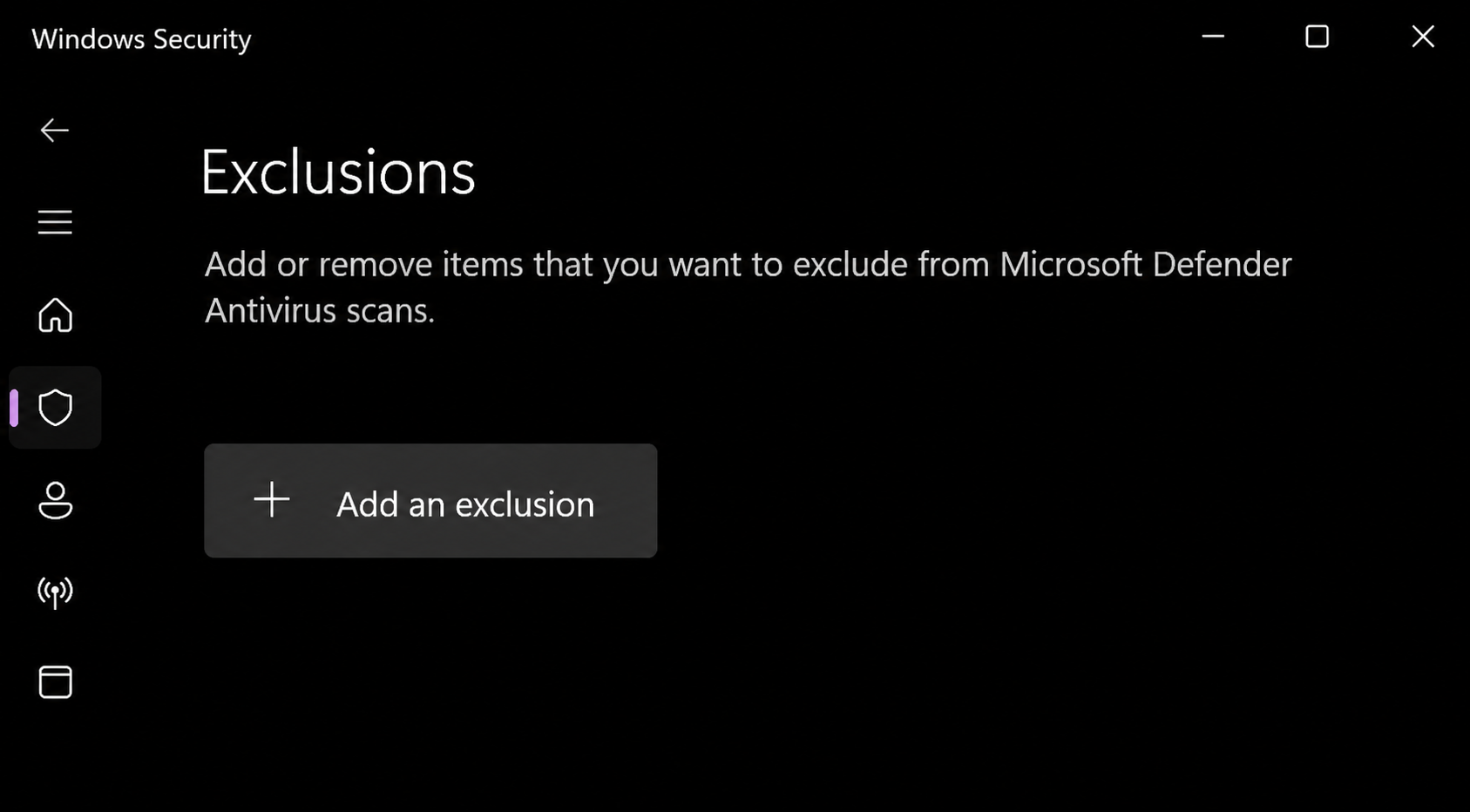
Microsoft warns that excluded folders are not checked by Defender's real-time protection. Keep the exclusion limited to the dedicated AoY folder, and never save unrelated downloads inside it. A Defender exclusion also does not control Webroot or another third-party antivirus.
Read Microsoft's Windows Security exclusion guidance.
aoy.dll if it was removedAge of Ymir.exe, AoY Launcher.exe, aoy.dll, cps.dll, and gepard.dll are present together in the game directory.Why there is no standalone DLL link: aoy.dll must match the current client release. Recover it through the official update or support process to avoid version mismatches.
A Defender folder exclusion does not bypass Smart App Control. If Windows specifically reports that Smart App Control blocked the verified AoY client, Windows does not provide a per-app allow button for that protection.
Turning Smart App Control off reduces Windows protection for every app, not only Age of Ymir. Microsoft's current guidance says recent Windows updates can allow it to be re-enabled, but availability depends on the Windows build and configuration; some systems may require a Windows reset or reinstall. Read the warning shown on your PC before confirming.
Smart App Control checks cloud reputation first and then a valid signature. Because the current AoY client is unsigned and is distributed to a smaller community, it can be treated as untrusted when Windows cannot establish sufficient reputation.
Read Microsoft's Smart App Control FAQ.
Third-party antivirus tools can quarantine aoy.dll or another required client module. Check the exact detection and file source; a detection label alone does not confirm whether a file is safe. If you are unsure, leave the file quarantined and request a second-opinion analysis below.
aoy.dll and allow that file if appropriate. Limit any folder override to the dedicated Age of Ymir folder, including its subfolders.Webroot folder/file override guidance.
If your antivirus flags an official AoY file, submit that exact file for analysis to both Microsoft and your antivirus vendor for additional peace of mind. This gives each security provider the opportunity to inspect the same sample and correct a false-positive classification.
File submission shares the selected sample with the security provider. Use only the provider's official website, review its privacy terms, and keep the submission ID or analysis result for your support ticket.
AoY Launcher.exe as administrator and let it finish patching.Setup.exe and select DirectX 9.aoy.dll, cps.dll, and gepard.dll are present.Use this section when the client fails to open, Gepard shows an error, the patcher hangs, or the game launches with the wrong graphics device.
Age of Ymir.exe, Setup.exe, OpenSetup.exe or the AoY Launcher.exe.DirectX 9 in Setup.exe.Age of Ymir.exe -> Properties -> Compatibility -> set to Windows 7 or Windows XP SP3.Age of Ymir.exe and AoY Launcher.exe.Program Files. Preferred directory: C:\Games\Age of Ymir or C:\Age of Ymir.AoY Launcher.exe.aoy.dll is missing.AoY Launcher.exe DirectX 9.Program Files.Age of Ymir.exe):60 FPSFixed RefreshApplication-controlledUse the 3D application settingIf the game lags when you move your mouse on the game screen, this can be caused by Gepard Shield reacting poorly to mice with a high default polling/report rate.
Lowering DPI may seem to reduce the issue, but it does not fully fix it. The important setting is the mouse polling rate or report rate.
This has fixed mouse-movement lag for affected players.
Cloudflare's app offers encrypted DNS and an optional WARP connection. The two modes do different things; neither guarantees lower game ping.
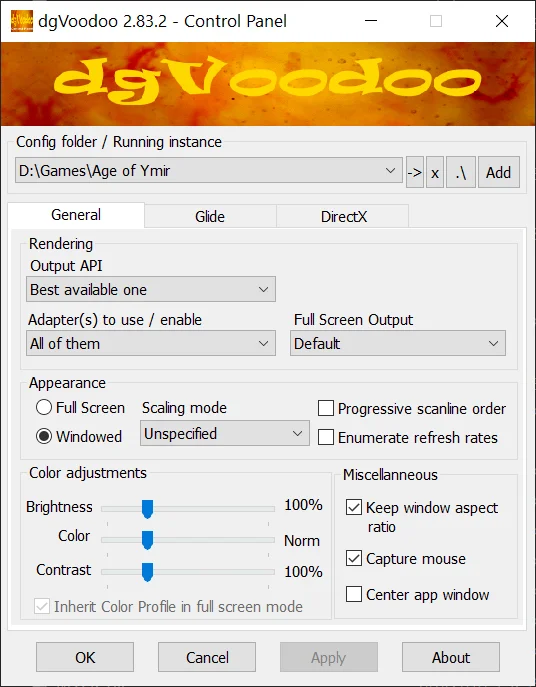
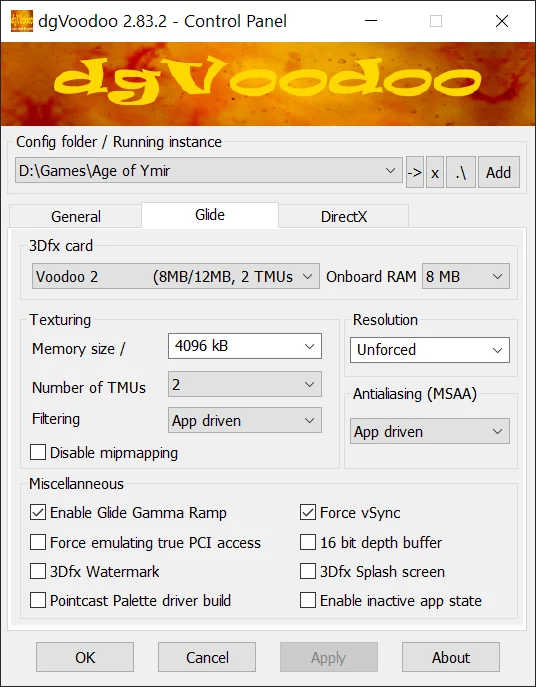
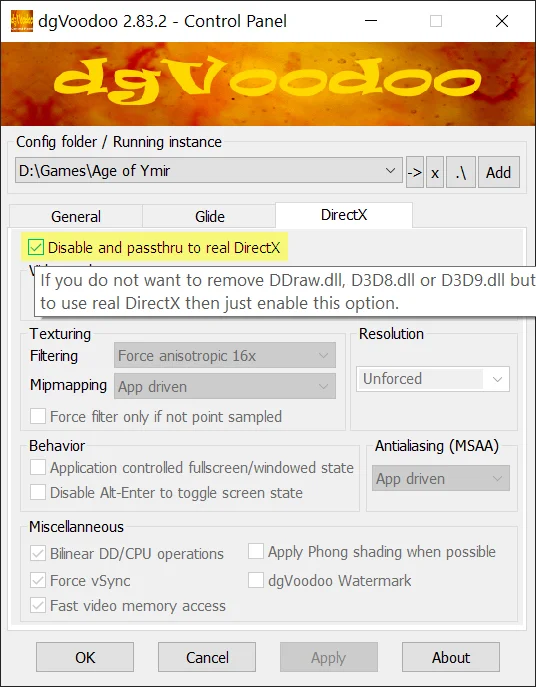
For high-resolution monitors, use dgVoodoo to improve compatibility and scaling.
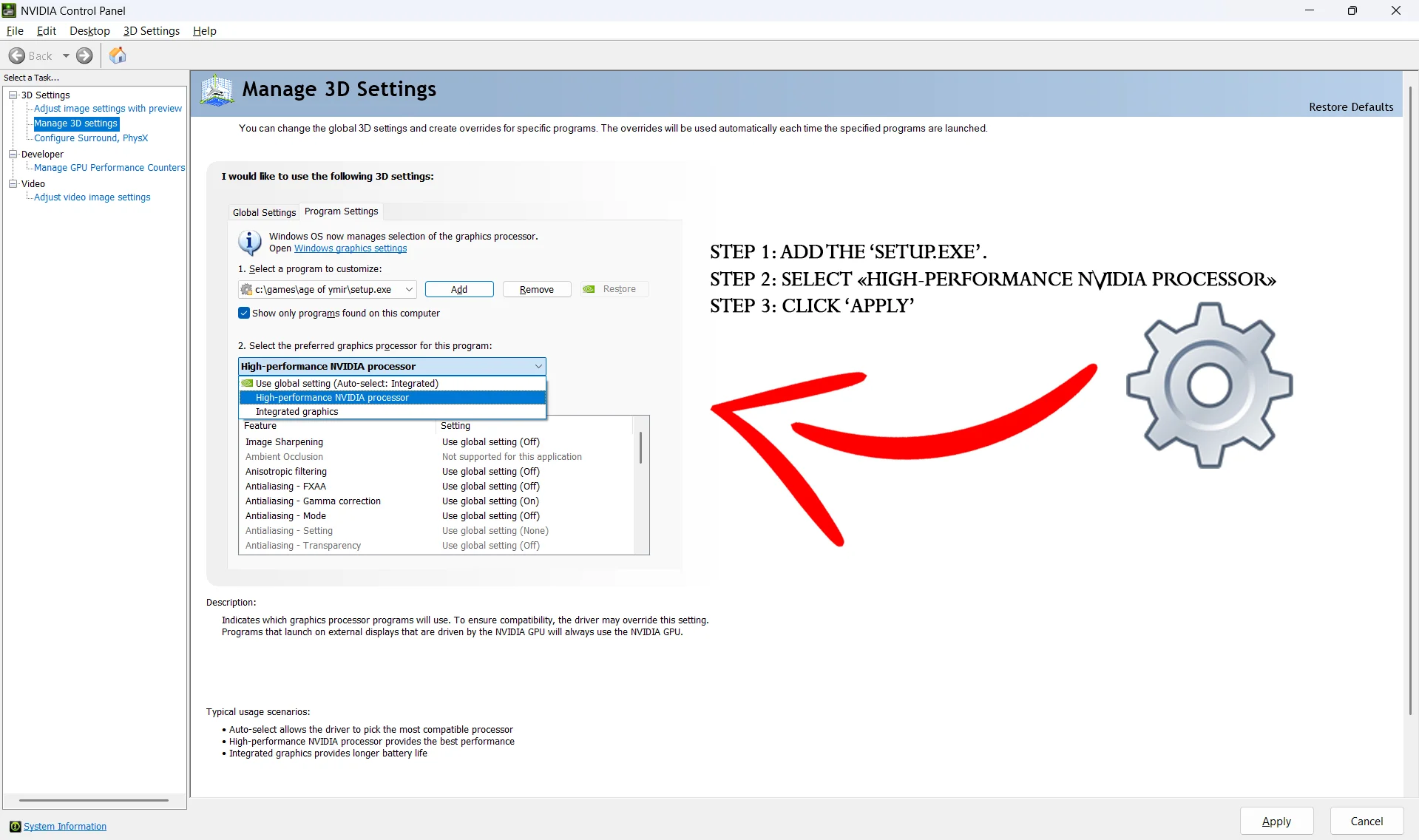
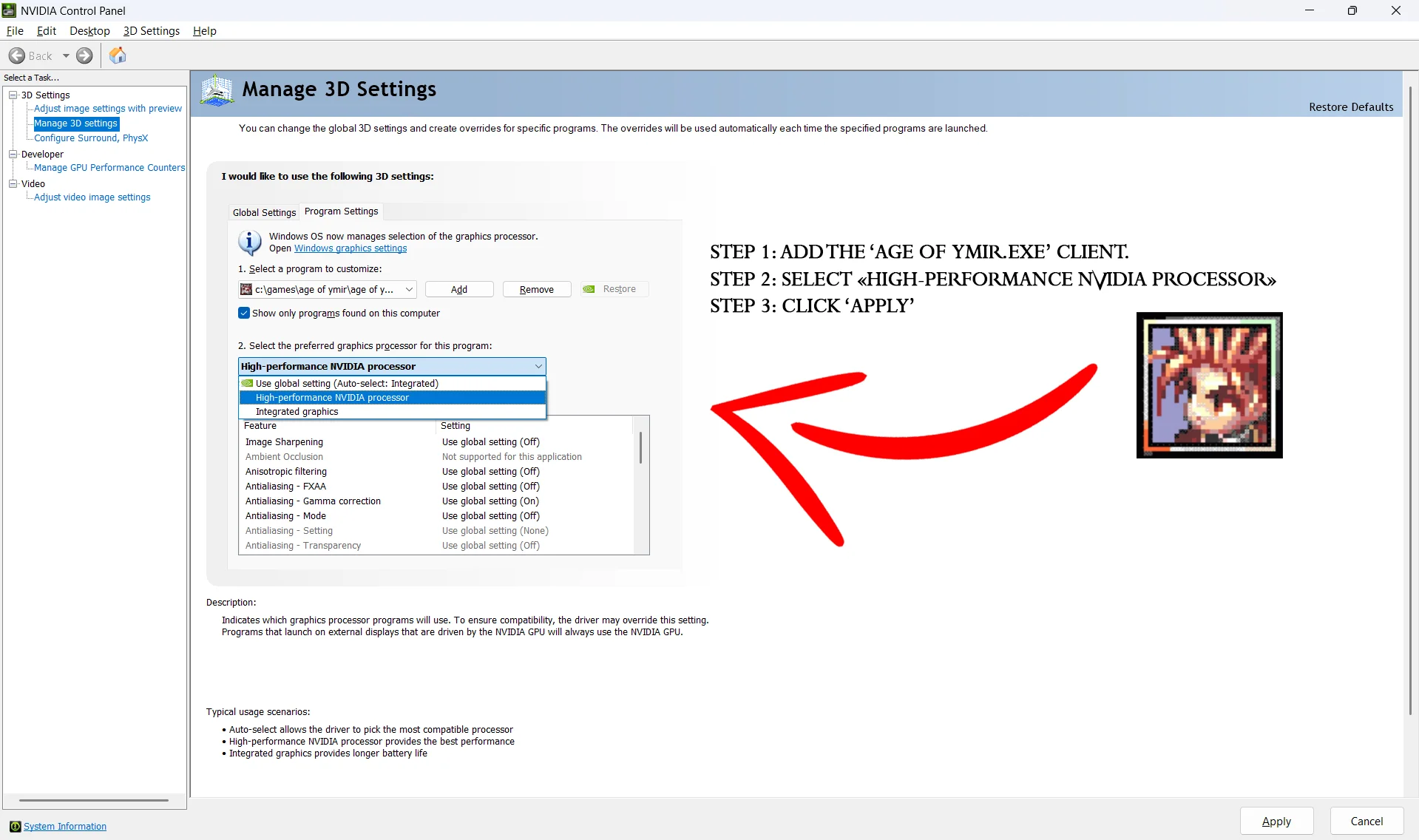
C:\Age of Ymir).D3D8.dll, D3D9.dll, D3Dlmm.dll, DDraw.dll, dgVoodooCpl.exe, dgVoodoo.conf.If you're using a laptop with both integrated and dedicated graphics (e.g., Intel + NVIDIA), follow these steps to ensure the game uses your dedicated GPU:
Age of Ymir.exe (or browse to your game folder). Also add Setup.exe or OpenSetup.exe if present.Note: For AMD GPUs, use AMD Radeon Settings -> System -> Switchable Graphics and set the game to High Performance.
dgVoodooCpl.exe from your Age of Ymir directory.Stretched, keep Aspect Ratio. Ensure Windowed is selected if you prefer windowed mode.Setup.exe or OpenSetup.exe. In the Graphics tab, select your dedicated GPU (e.g. "NVIDIA GeForce GTX... [dgVoodoo TnL HAL]") and click OK.Launch the game and verify GPU usage in Task Manager or your GPU monitoring software.
Right-click Age of Ymir.exe -> Properties -> Compatibility -> Change High DPI Settings:
System (Enhanced)dinput.ini for Custom ResolutionIf you want to override the RO window size or position, create or edit dinput.ini in your game folder:
; Override RO window position and size.
; Ignored if WindowWidth = 0 or WindowHeight = 0.
; Command line switch: -wX,Y,Width,Height
WindowPosX =0
WindowPosY =0
WindowWidth =1920
WindowHeight =1080
Ensure WindowWidth and WindowHeight are set to match your desired resolution.
To display non-English characters:
dinput.dll and dinput.ini into your game folder.Note: Skip this step if the files already exist.
2. Edit dinput.ini and set:
CodePage = 6500151932 = Japanese | 51949 = Korean | 51950 or 51936 = Chinese | 1251 = Russian | 65001 = Unicode / All Languages3. Save and launch the game.
Gray World is an optional, permitted visual mode. It replaces map-related textures with gray versions for a simpler appearance. Any performance improvement depends on your system; it does not change character stats, combat, rewards, or other gameplay mechanics.
Chibi Mode can remain enabled. If nothing changes or the button is unavailable, follow the launcher control checks above.
To switch back to the original map textures, close the game, open OPTIONS, then Game Settings in the current AoY launcher, and turn Gray World OFF. Let the launcher finish any pending update before starting the game again.
Chibi Mode is a permitted cosmetic client modification. It replaces character sprite resources with smaller Chibi versions; it does not disable Gepard Shield or change gameplay.
The launcher handles the resource order and any legacy sprite archive for you. Gray World can stay enabled. If normal-size sprites still appear, follow the launcher control checks. Lite Client users must also have the compatible data.grf described in the installation guide.
AzzyAI provides customized behavior and automation for your Homunculus companion. The files belong in the main Age of Ymir directory, and the in-game /hoai command must be set to custom mode before the client will use them.
Copy the existing AI folder to a safe location before installing or replacing AI files. This gives you a clean recovery path if an older customization conflicts with AzzyAI or you later want to return to the default files.
Age of Ymir.exe. Allow Windows to merge the included AI folder when prompted./hoai in chat until the message Homunculus has been customized appears. Stop after that confirmation because /hoai switches between default and custom AI modes.Age of Ymir\AI. If the download created an extra outer folder, move its contents to the game directory rather than leaving a path such as Age of Ymir\AzzyAI\AI.AI directory.AI folder to AI.backup, install a fresh copy from the resource, and restart the client. Keep the backup until the new installation is working./hoai once at a time and read the chat response. Stop as soon as the customized confirmation appears so you do not immediately toggle back to default mode.Use /hoai to switch back to default mode and verify the response in chat. To remove AzzyAI completely, close the client and launcher, then restore your backed-up AI folder or replace it with the standard AI files from an official Age of Ymir client package.
Turbo and Smart Cast are included with the current AoYExt client. Configure keys through the TURBO button (AoYExt Settings) in AoY Launcher.exe, then use the independent /turbo and /smartcast commands in game when you need to toggle either mode; no separate hotkey tool is required.
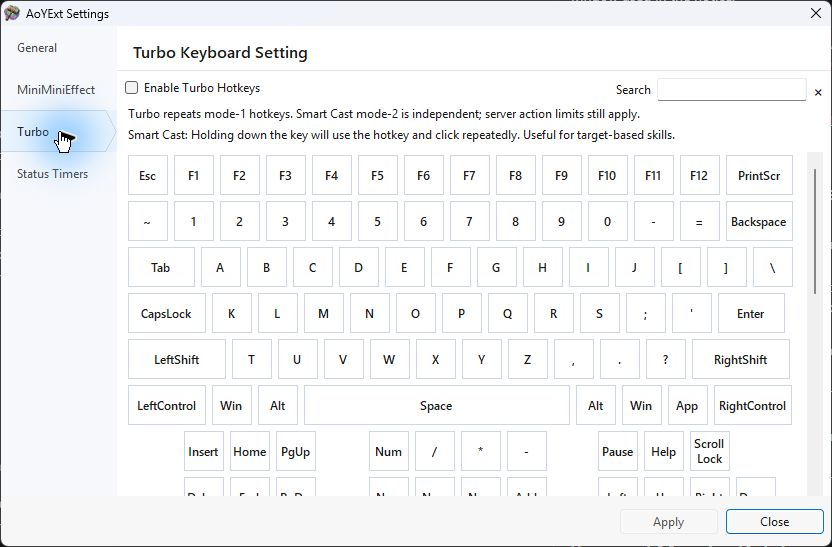
AoY Launcher.exe, click TURBO to open AoYExt Settings, and select Turbo in the sidebar to open Turbo Keyboard Setting./turbo or /smartcast to switch that mode back on. The two toggles are independent./turbo for Turbo-mode bindings or /smartcast for Smart Cast bindings; toggling one does not disable the other.For the full activation guide and feature behavior, see AoYExt Turbo & Smart Cast. For every client toggle and numeric limit, see AoYExt Slash Commands.
Follow Patching stops or PLAY stays gray above. Keep the exact error for your support ticket. Use Launcher Repair for a supported full client if REPAIR is unavailable or the launcher will not open. For an older full client, use the latest installer and select your existing AoY folder. Normal launcher updates do not require reinstalling.
Best Regards!
Troubleshooting can be a journey of patience, persistence, and learning. Thank you for taking the time to resolve your issue with us.
If challenges arise again, this page will always be here to guide you. For further technical assistance, you are always welcome on our Discord server.
Kind regards,
The AoY Team.


Convert Beta Costume Adventure Bags into Gravity Core I and manage Gravity Core enchants for costume garments.
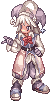
The Style Exchanger converts eligible Gem Shop cosmetics into transfer tickets and restores them from those tickets when you want the item back.
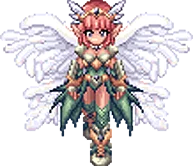
The Craft Maiden handles costume recipes derived from the Headgear Master, letting you turn materials into fashion-only costume versions.

Discover 22 costume recipes in Geffen Field 09. Bring the listed materials and 5,000,000 Zeny to craft your chosen look.
NPC appearance and menu preview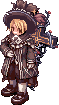
Grand Tailor specializes in exquisite, high-end costumes for those with a taste for elegance. Only the finest designs make the cut.
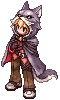
Oliver deals in the finest 'unique' costumes that most adventurers overlook. There might be a hidden gem in the pile!

Visit Rosie on the Main Office's third floor. Trade a supported original item and Mysterious Dyestuff for a chosen recolor.

Daisy is on the Main Office's third floor. Equip a supported dyed item and bring a Dye Eraser to restore its default form.
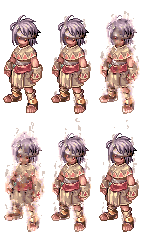
The Ghost of Niflheim crafts eerie cosmetic companions from Niflheim monster cards and local monster drops.

Kaito Dreamweaver trades rare mini-boss cards for Dreamthread, a special material used in dream-themed costume work.

Reach Base Level 99, then redeem your Valkyrie Helm Token with Mom for one of 14 Costume Valkyrie Helmets.

 Skill Description:
 Skill Description:
 Skill Description:


 Community Reviews




 Best Regards!